

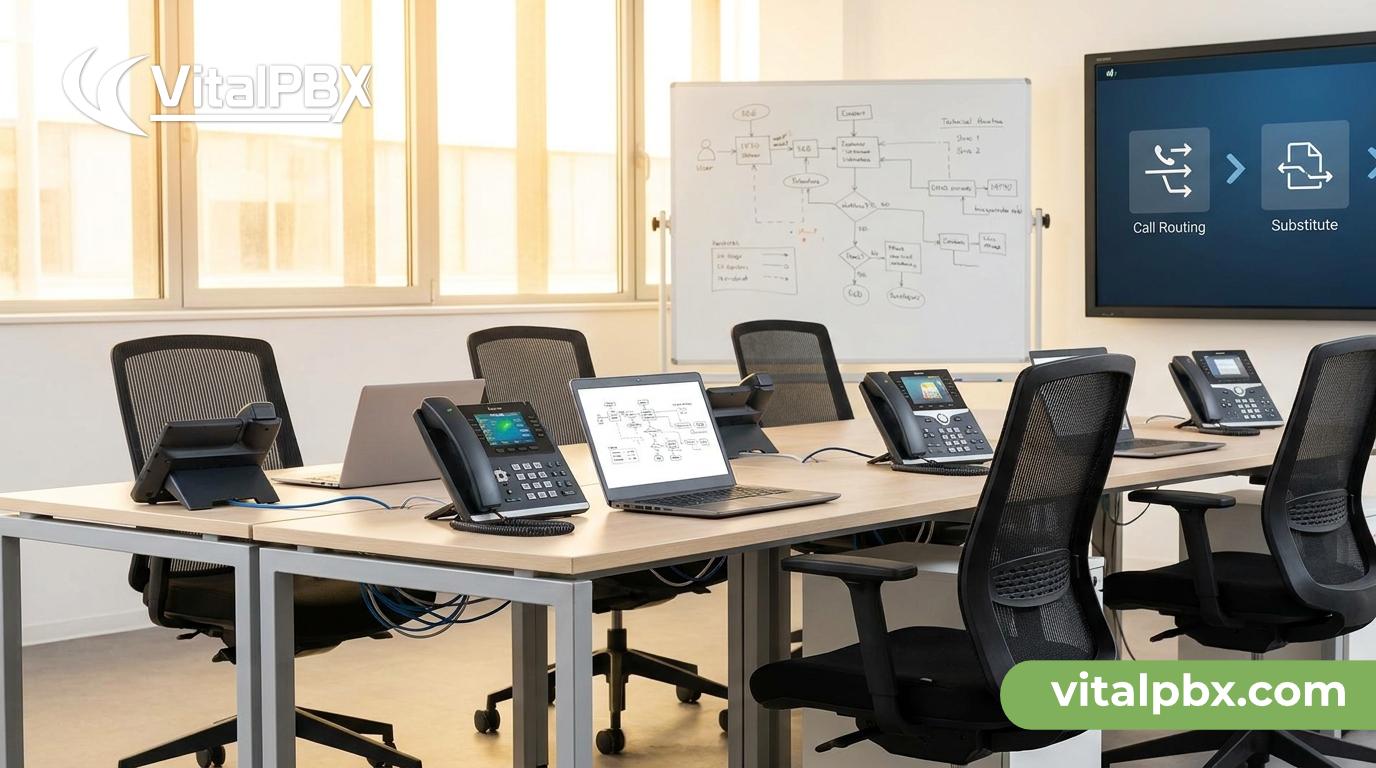
Hot Desking Classroom Phone: Solving the Shared-Phone Problem for Substitute Teachers
Every school day, substitute teachers walk into unfamiliar classrooms and face the same invisible obstacle: the desk phone. It’s registered to the absent teacher. Calls to the room go to the wrong voicemail. Outbound calls show the wrong caller ID. And when the substitute needs to reach the front office quickly, they’re stuck fumbling with a phone that doesn’t know who they are.
This is the shared-phone problem — and it’s more common than most IT admins realize. In K–12 schools, community colleges, and corporate training environments, phones sit at shared desks and get used by whoever happens to be there that day. Without a proper solution, you end up with a messy tangle of misrouted calls, missed voicemails, and frustrated staff.
VitalPBX’s Hot Desking feature solves this cleanly. This post explains exactly how hot desking works on a classroom phone, how to configure it with VitalPBX, and why it’s the right tool for any environment where multiple people share the same physical handset.
The Shared-Phone Problem in Schools and Shared Workspaces
A classroom phone registered permanently to one teacher creates real operational headaches. When that teacher is absent, substitutes have no clean way to use that phone as their own — and the problems stack up fast.
Voicemail confusion. Parents calling the classroom leave voicemails that the absent teacher won’t hear for days, and the substitute has no access to them.
Wrong caller ID. When the substitute calls the main office or a parent, the call displays the registered teacher’s name and extension. That creates confusion and, in some cases, compliance concerns for schools that track who initiates outbound calls.
No personal routing. If a substitute is assigned to multiple rooms across the day, there’s no way to follow their calls from room to room.
Security gaps. Without hot desking, the only workaround is sharing PIN codes or reprogramming handsets — both of which introduce unnecessary security risk and IT overhead.
These issues aren’t limited to schools. Corporate training centers, hospital nursing stations, library help desks, and any open-plan office with shared workstations face the exact same friction. Any time a person sits at a phone that isn’t theirs, the identity mismatch creates problems.
How Hot Desking Works in VitalPBX
Hot desking lets a user temporarily log in to any physical phone on the network and make it behave as if it’s their own extension — their caller ID, their voicemail, their call forwarding rules, their class of service. When they log out, the phone reverts to its default state or becomes available for the next user.
In VitalPBX, hot desking is implemented through a Guest Extension model. Here’s how the flow works:
- A base (guest) extension is assigned to the physical phone — the classroom handset. This is a placeholder extension that sits idle when no user is logged in.
- A substitute teacher dials a feature code (default:
*11) and enters their personal PIN. - VitalPBX maps their personal extension onto that physical device. The phone now rings for their extension, displays their caller ID, and routes to their voicemail.
- When the substitute leaves, they dial the logout code (
*12) — or the session expires automatically based on a configurable timeout. - The phone reverts to its guest state, ready for the next user.
No IT intervention required. No reprogramming the phone. No shared PINs. The substitute brings their identity to the phone, uses it, and leaves cleanly.
What Carries Over During a Hot Desk Session
When a user logs in via hot desking in VitalPBX, the following attributes follow them to the physical device:
- Extension number — Inbound calls ring correctly to their assigned extension
- Caller ID name and number — Outbound calls display their identity
- Voicemail box — Messages go to the right place
- Class of Service (CoS) — Call permissions travel with the user, not the phone
- Do Not Disturb and call forwarding settings — Their personal preferences apply
This last point — Class of Service — is particularly important in schools. A substitute teacher might have restricted outbound calling privileges (no long-distance, for example). With hot desking, those restrictions follow them to whichever phone they log in to. The physical device’s default permissions don’t override the user’s assigned CoS.
Configuring Hot Desking in VitalPBX: A Step-by-Step Overview
Setting this up in VitalPBX is straightforward. Here’s a practical overview of the configuration process for IT admins.
Step 1: Create a Guest Extension for the Classroom Phone
In VitalPBX, navigate to PBX > Extensions and create a new extension designated as the guest/base extension for the physical handset. This extension will act as the “host” device. Assign it a descriptive name like Room 204 Phone so it’s easy to identify in the admin panel.
Step 2: Enable Hot Desking on the Guest Extension
In the extension configuration, enable the Hot Desking option. Set a default auto-logout time if you want sessions to expire automatically at the end of the school day — a useful safeguard if substitutes forget to log out.
Step 3: Set Up User Extensions for Each Substitute
Each substitute (or regular teacher) needs their own personal extension in VitalPBX. This is the extension they log in with. Assign each user a unique Hot Desking PIN through their extension settings. This PIN is what they enter at the physical phone to claim it.
Step 4: Configure Feature Codes
VitalPBX ships with default feature codes for hot desking:
*11— Hot desk login*12— Hot desk logout
These can be customized under PBX > Feature Codes if your dial plan requires different codes.
Step 5: Apply Class of Service
Make sure each user extension is assigned the appropriate Class of Service profile before going live. This ensures that when a substitute logs in, their calling permissions are what the school IT policy dictates — not whatever the guest extension defaults to.
Step 6: Test the Flow
Log in to a test phone using a user PIN, verify that caller ID displays correctly, place a test call, check voicemail routing, then log out and confirm the device returns to its guest state. This full cycle should take under five minutes.
VitalPBX Documentation — https://wiki.vitalpbx.com
Real-World Use Cases Beyond the Classroom
Hot desking on a shared phone isn’t just a school problem. Once you understand the mechanics, you’ll find applications across many environments.
Substitute and rotating staff in healthcare. Nursing stations in hospitals operate with rotating shift workers. Hot desking ensures every nurse who sits at a station phone has their own identity on the network — critical for patient communication tracking and compliance.
Corporate training centers. Training rooms used by different instructors across the week benefit from the same identity-portability logic. The trainer logs in, runs their session with their extension active, and logs out when done.
Contact center hot seats. In a call center environment where agents don’t have assigned desks, hot desking lets agents claim any available workstation. Combined with VitalPBX’s queue management and Sonata Stats reporting, supervisors get accurate per-agent performance data regardless of which physical phone the agent used.
Call Center Features — https://vitalpbx.com/call-center-pbx-plan/
Open-plan offices and hot-desk workspaces. As hybrid work drives more companies to reduce dedicated desk assignments, the classroom phone problem becomes a corporate phone problem. Hot desking in VitalPBX scales to this exactly — no per-user fees means you can enable it for every user in the building without watching licensing costs climb.
Why VitalPBX Is the Right Platform for Hot Desking at Scale
The hot desking feature exists in several PBX platforms, but the surrounding ecosystem matters just as much as the feature itself.
No per-user fees. VitalPBX charges no per-extension or per-user fees. Whether your school district has 50 substitute teachers or 500, the license cost stays the same. [Link: VitalPBX Pricing — https://vitalpbx.com/pricing/] This is a meaningful difference from hosted VoIP platforms that charge monthly per user — substitutes who only work a few days a month still incur full seat costs on those platforms.
Class of Service granularity. VitalPBX’s CoS system is robust enough to model complex permission hierarchies — staff vs. substitutes vs. administrators — so the right calling privileges follow each user wherever they log in.
Built-in security. VitalPBX ships with a built-in firewall and intrusion detection system. PIN-based hot desking operates within that security perimeter, and automatic session timeouts prevent open sessions from becoming a security gap.
Scales with your environment. VitalPBX’s Enterprise plan supports up to 5,000 extensions. A large school district or multi-campus corporate campus can run the entire phone system — including hot desking — on a single VitalPBX server.
Self-hosted, no vendor lock-in. VitalPBX deploys on your own hardware or VPS running Debian 12 64-bit. Your call data stays on your infrastructure. There’s no monthly per-user fee creeping upward every renewal cycle.
VitalPBX was recognized as the 2026 INTERNET TELEPHONY Product of the Year — a reflection of the platform’s breadth and the quality of its implementation across features like hot desking, AI integrations, and multi-tenant management.
Frequently Asked Questions
What is hot desking on a classroom phone?
Hot desking on a classroom phone is a VoIP feature that lets a temporary user — like a substitute teacher — log in to a shared physical handset and have it behave as their personal extension. Their caller ID, voicemail, and call permissions follow them to the device. When they log out, the phone returns to its default state for the next user.
How does a substitute teacher log in to a hot desk phone in VitalPBX?
The substitute dials *11 on the physical phone and enters their personal hot desking PIN. VitalPBX then maps their personal extension to that device for the duration of the session. They can log out by dialing *12, or the session will expire automatically if an auto-logout timer has been configured by the administrator.
Does hot desking in VitalPBX carry over call permissions and restrictions?
Yes. When a user logs in via hot desking, their assigned Class of Service (CoS) profile applies to the physical phone for the entire session. This means outbound calling restrictions, allowed destinations, and other permission settings follow the user — not the device. A substitute with restricted long-distance access will have those same restrictions regardless of which phone they log in to.
Can a substitute use hot desking on multiple phones in the same day?
A user can log out of one phone and log in to a different one. In VitalPBX, a single extension can only be active on one hot desk device at a time. If a substitute moves between classrooms, they log out of the first phone and log in at the next one. Their extension, voicemail, and CoS follow them to each new device.
Is hot desking only useful in schools?
No. Hot desking solves the shared-phone problem in any environment where multiple people use the same physical handset at different times. Common deployments include hospital nursing stations, corporate training rooms, open-plan offices, hotel front desks, and call center hot-seat configurations. Any time a physical phone is shared across users with different identities or permissions, hot desking is the right tool.
Does VitalPBX charge extra for hot desking?
No. Hot desking is a core feature of VitalPBX included in all commercial plans — VitalPBX One, Enterprise, Call Center, and Multi-Tenant. There are no per-user fees and no feature add-on charges for enabling it. You can give every user in your organization a hot desking PIN without increasing your licensing cost.
What hardware is required to run VitalPBX with hot desking?
VitalPBX itself requires a server running Debian 12 64-bit minimal — either on-premise hardware or a VPS. For the physical endpoints, any SIP-compliant IP phone that supports feature code dialing will work with hot desking. No proprietary hardware is required.
Stop Handing Substitutes a Phone That Doesn’t Know Who They Are
The classroom phone problem is small enough to ignore — until it isn’t. A misrouted parent call, a missed urgent voicemail, or a compliance question about who placed an outbound call can each turn a minor inconvenience into a real operational issue.
Hot desking in VitalPBX eliminates the identity mismatch between users and shared phones. It takes minutes to configure, requires no per-user licensing, and scales cleanly from a single school to a district-wide deployment.
If you want to see how hot desking fits into a broader VitalPBX deployment — including call routing, class of service, and user management — book a live demo with our team.
Book your demo (US Eastern Time): https://calendly.com/vitalpbx/learn-more
Book your demo (Europe): https://calendly.com/semarze-vitalpbx/learn-more-about-vitalpbx-europe-time
Or start with a hands-on trial — no commitment required:
Start your Enterprise Trial →